
Altimeter Errors Explained: Indicated vs. True Altitude
Your altimeter says 3,000 feet. Does that mean you’re actually 3,000 feet above sea level?
Not necessarily. A barometric altimeter measures air pressure and translates that pressure into an altitude indication. The number you see depends on the pressure setting you enter, and how closely the atmosphere matches the standard conditions the instrument assumes.
That’s why altimeter settings, temperature errors, and the different types of altitude are core topics in private pilot and instrument training. Memorizing the definitions is a start. Seeing the relationships change makes them much easier to understand.
With FlightInsight’s interactive altimeter simulator, you can move the airplane, change pressure and temperature, and watch the instrument respond in real time. Here’s what to look for as you experiment.

How Does an Aircraft Altimeter Work?
As an airplane climbs, the atmospheric pressure around it generally decreases. A conventional altimeter uses sealed aneroid wafers that expand as the surrounding static pressure decreases and contract as it increases. A mechanical linkage turns that movement into the altitude displayed by the instrument’s hands.
The instrument doesn’t directly measure the airplane’s distance above the ground or sea level. It interprets pressure using a standard atmospheric model.
The adjustable pressure scale (the Kollsman window) lets you change the reference used for that interpretation. Turn the setting knob, and the hands move even if the airplane stays at exactly the same height.
In the simulator, hold true altitude constant and adjust the setting in the Kollsman window. You’ll see the difference between changing the instrument’s reference and actually moving the airplane.
Indicated Altitude vs. True Altitude
Indicated altitude is the altitude you read directly from the altimeter with its current setting.
True altitude is the airplane’s actual height above mean sea level, or MSL.
Absolute altitude is its height above the terrain below, or AGL. An airplane at 3,000 feet MSL above terrain that is 1,000 feet MSL has 2,000 feet of ground clearance.
In the simulator, the true-altitude slider controls the airplane’s actual height. The altimeter shows the resulting indicated altitude. Comparing the two helps you see when the instrument agrees with the airplane’s position and when atmospheric conditions or an incorrect setting create a difference.
Start with standard temperature conditions and match the instrument setting to the reported altimeter setting. Then move the airplane up and down. This gives you a baseline before introducing an error.
What Happens When You Change the Altimeter Setting?
Increasing the number in the Kollsman window increases indicated altitude. Decreasing the setting decreases indicated altitude.
Try it while leaving the airplane’s true altitude unchanged. Set a higher pressure in the window and watch the hands move toward a higher altitude. Then dial in a lower setting and watch them move back.
The airplane hasn’t climbed or descended. You’ve changed what the instrument reports.
A useful approximation is 1 inch of mercury equals about 1,000 feet of indicated-altitude change, or about 100 feet for 0.10 inHg. This is a rule of thumb rather than an exact conversion at every altitude. The FAA discusses setting errors in AIM Section 7-2.
“High to Low, Look Out Below”: Pressure Errors
Imagine flying toward an area with lower atmospheric pressure while keeping your old altimeter setting. If you maintain the same indicated altitude, your true altitude will decrease.
That’s the pressure lesson behind “high to low, look out below.” With an outdated setting from the higher-pressure area, the altimeter can show you higher than you actually are.
To explore this in the simulator, begin with the reported setting and Kollsman setting matched. Lower the reported pressure while leaving the instrument setting unchanged. Compare indicated and true altitude. Then use the true-altitude slider to return to your original indicated altitude and observe the airplane’s lower position.
Finally, enter the new reported setting in the Kollsman window. Watch the indication change without moving the airplane. Keeping the setting current addresses this pressure-setting error, as explained in AIM 7-2-3.
How Temperature Affects True Altitude
Even with the correct pressure setting, nonstandard temperature can create a difference between indicated and true altitude.
Cold air compresses the vertical spacing between pressure levels. Warm air expands it. An altimeter interpreting those levels through a standard atmospheric model cannot fully account for the difference simply because you entered the correct pressure setting.
For a given indicated altitude above the pressure reference, colder-than-standard conditions put the airplane lower; warmer-than-standard conditions put it higher. The FAA explains this relationship in AIM Section 7-3.

Use the simulator’s outside air temperature, or OAT, control to explore this. Begin with standard conditions, then decrease the temperature while keeping true altitude fixed. Compare the indication with the airplane’s actual height. Next, adjust true altitude to recover your original indicated altitude. You can now see what happens when a pilot maintains an altimeter reading in colder air.
Repeat the experiment with warmer conditions.
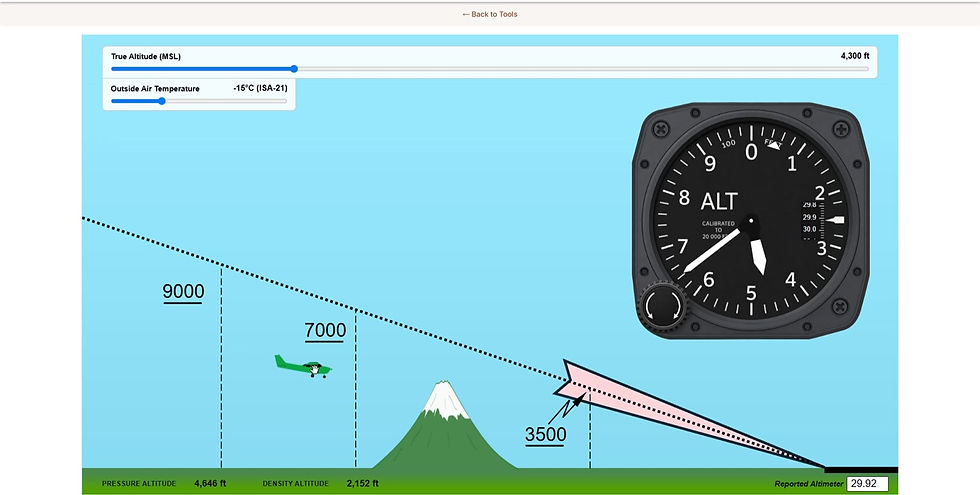
What Does ISA Mean on the Temperature Display?
ISA stands for International Standard Atmosphere. Standard temperature is 15°C at sea level and decreases by approximately 2°C per 1,000 feet in the altitude range represented by the tool.
At 5,000 feet, for example, standard temperature is approximately 5°C. An OAT of 15°C there is about ISA +10, even though 15°C would be standard at sea level.
The simulator shows the temperature’s departure from ISA. When you change true altitude, it adjusts OAT to preserve that departure. Climbing in ISA conditions therefore makes the displayed temperature decrease rather than holding it at 15°C throughout the climb.
This lets you explore a consistently warmer- or colder-than-standard atmosphere. Compare experiments using the ISA difference rather than judging temperature by the Celsius number alone.
Pressure Altitude vs. Density Altitude
Pressure altitude is the altitude indicated with the altimeter set to 29.92 inHg. In the simulator, enter 29.92 in the Kollsman window to explore how this differs from the indication obtained with the reported local setting.
Density altitude is pressure altitude corrected for nonstandard temperature. It describes air density in terms of an equivalent altitude in the standard atmosphere and helps explain aircraft performance. At a given pressure altitude, warmer air generally produces a higher density altitude and reduced aircraft performance.
These concepts answer different questions. Pressure altitude establishes a standard pressure reference. Density altitude helps describe performance conditions. True altitude describes your actual height above sea level.
A hot day can mean high density altitude without putting the airplane closer to the ground at a given indicated altitude. Keep the performance question separate from the altimeter-error question.
Practice Altimeter Errors with the Free Simulator
Before changing a control, predict what will happen. Will the indication rise or fall? Will you need to climb or descend to recover the same indicated altitude? Then make the change and compare your prediction with the result.
Change one variable at a time: true altitude, reported pressure, the Kollsman setting, or temperature. Once each relationship makes sense, combine them to explore more challenging conditions.
The simulator illustrates the concepts; actual cold-temperature approach corrections use the applicable published procedures. They are not accomplished by changing the Kollsman setting. See FAA cold-temperature airport procedures.
Try the free FlightInsight Altimeter Simulator. Sign in with your FlightInsight CoPilot app account, or create a free account to access the simulator and other free training tools.
Written by Dan George, Gold Seal CFII and Founder of FlightInsight

